Loading Data from Projects
How you load data from a project depends on the type of fie you need to access — ORS Object files, ORS Session files, deep learning models, machine learning classifiers, or other types of files.
 Loading Images, Regions of Interest, Multi-ROIs, Meshes, Session Groups, and other ORS Object Files
Do any of the following to load items that were saved in the ORS Object file format, such as images, regions of interest, multi-ROIs, meshes, and session groups:
- Drag an item or items from the Organizer to the Dragonfly workspace or to the Data Properties and Settings panel, as shown below.
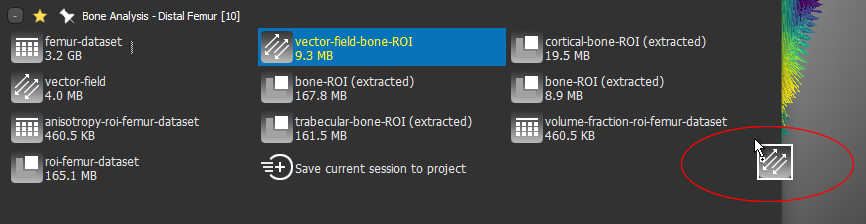
- Double-click an item to add it to the Data Properties and Settings panel.
Loading Session Files
Do the following to load a session file that was saved in the Organizer:
- Drag the session file from the Organizer to the Dragonfly workspace.
Note In this case, the current session will be cleared.
Loading Image Stacks
Do the following to load data that was saved as an image stack, such as a series of TIFF files:
- Drag the image stack, which is shown as a single item in the Organizer, to the workspace or to the Data Properties and Settings panel.
The images will then appear in the Import Image dialog (see Importing Image Files for information about loading image files).
Loading Deep Learning Models
Any Deep Learning model that was saved to the Organizer can be loaded into Dragonfly's Deep Learning Tool for further training or inference.
Do the following to load a Deep Learning model from a project:
- Open the Deep Learning Tool.
- Drag the required model from the Organizer to the Model list on the Model Overview panel.
Loading Machine Learning Classifiers
Any Machine Learning classifier that was saved to the Organizer can be loaded into Dragonfly's Machine Learning Segmentation dialog for further training or inference.
Do the following to load a Machine Learning classifier from a project:
- Open the Machine Learning Segmentation dialog.
- Drag the required classifier from the Organizer to the Model list on the Model panel.
Opening other Types of Files
Do the following to open other types of files, such as PDFs, CSVs, screen captures, and videos, from a project:
- Double-click an item to open it in an associated program.


